
How to Enable Google Authenticator on BINANCE TH App

How to Enable Google Authenticator on BINANCE TH App
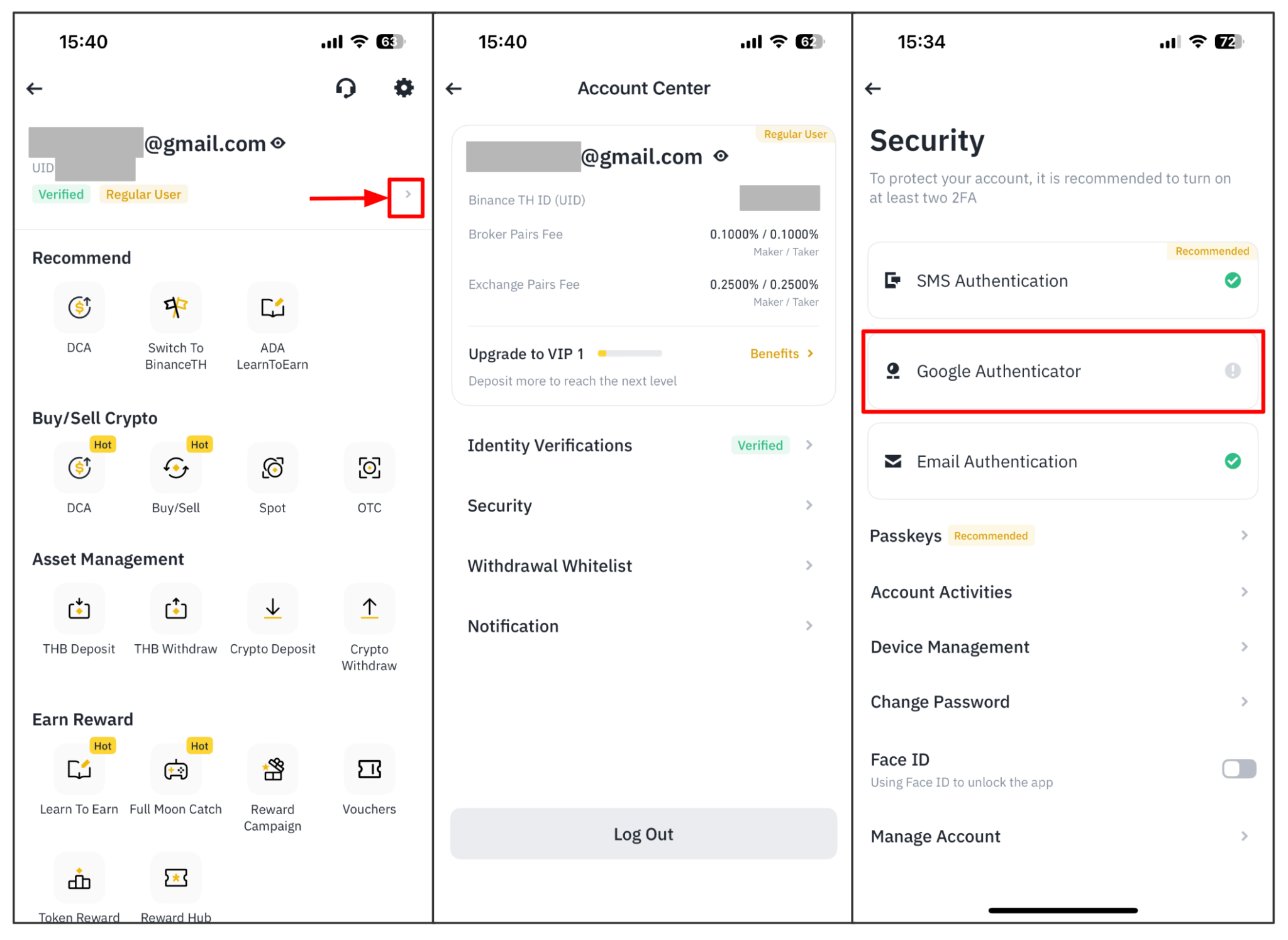
1. Log in to your BINANCE TH account and tap on the [Profile] icon. Then tap [Security] - [Google Authenticator]
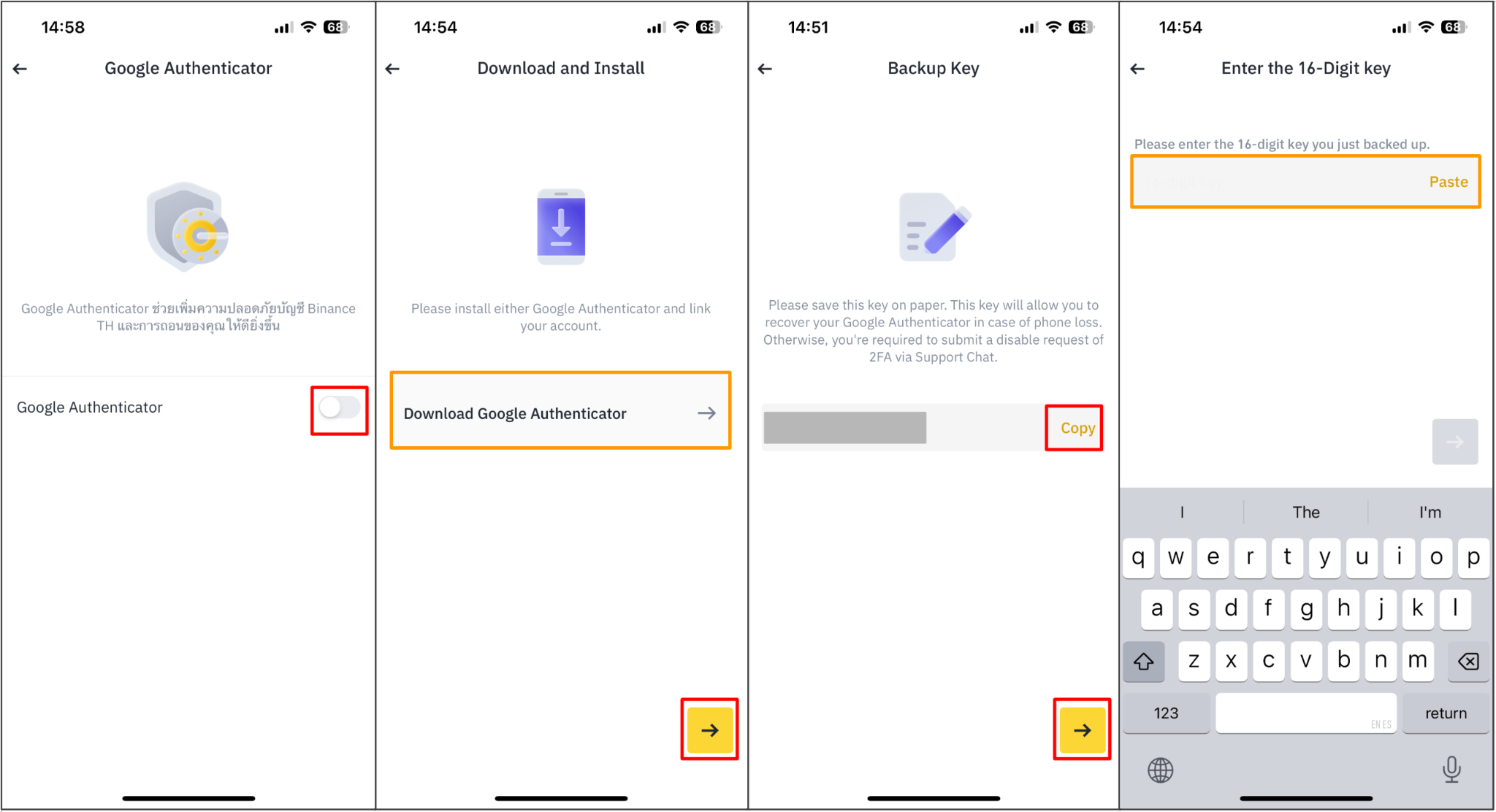
2. Tap to toggle on the button [Google Authenticator] and download the Google Authenticator App on your device. If you’ve already installed the App, tap [Link] to continue.
3. You will then see a 16-digit backup key on the screen. Please save this key on paper and store it in a secure location. In case you lose your device, this key will allow you to recover your Google Authenticator account. Next, tap [Copy] - [Bind].
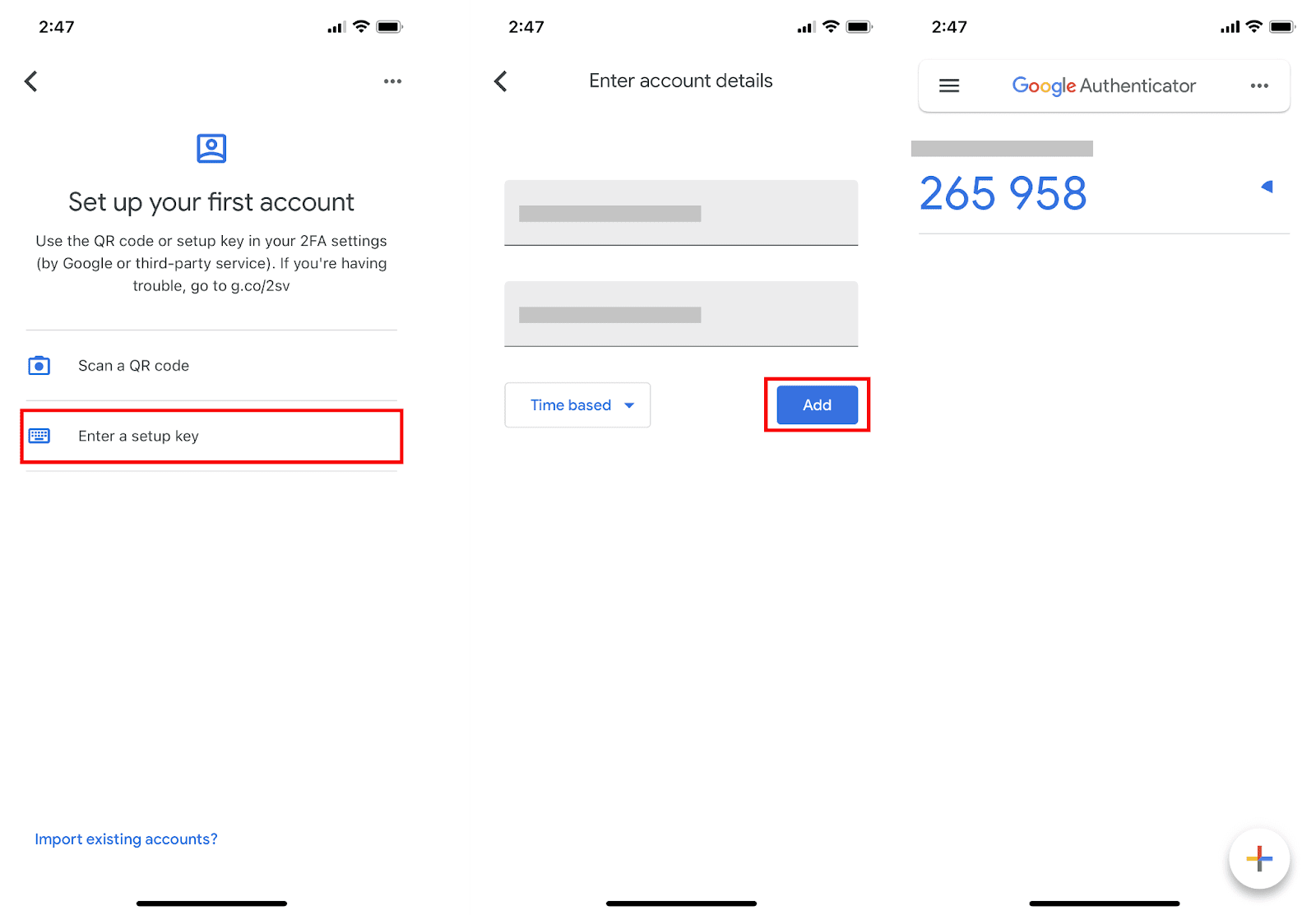
4. Open the Google Authenticator App and tap [Enter a setup key]. Enter your BINANCE TH account details and the paste 16-digit setup key you just saved. Tap [Add] and you should see a 6-digit code.
5. Go back to the BINANCE TH App to verify your set-up request with your 2FA devices, including the newly enabled Google Authenticator.
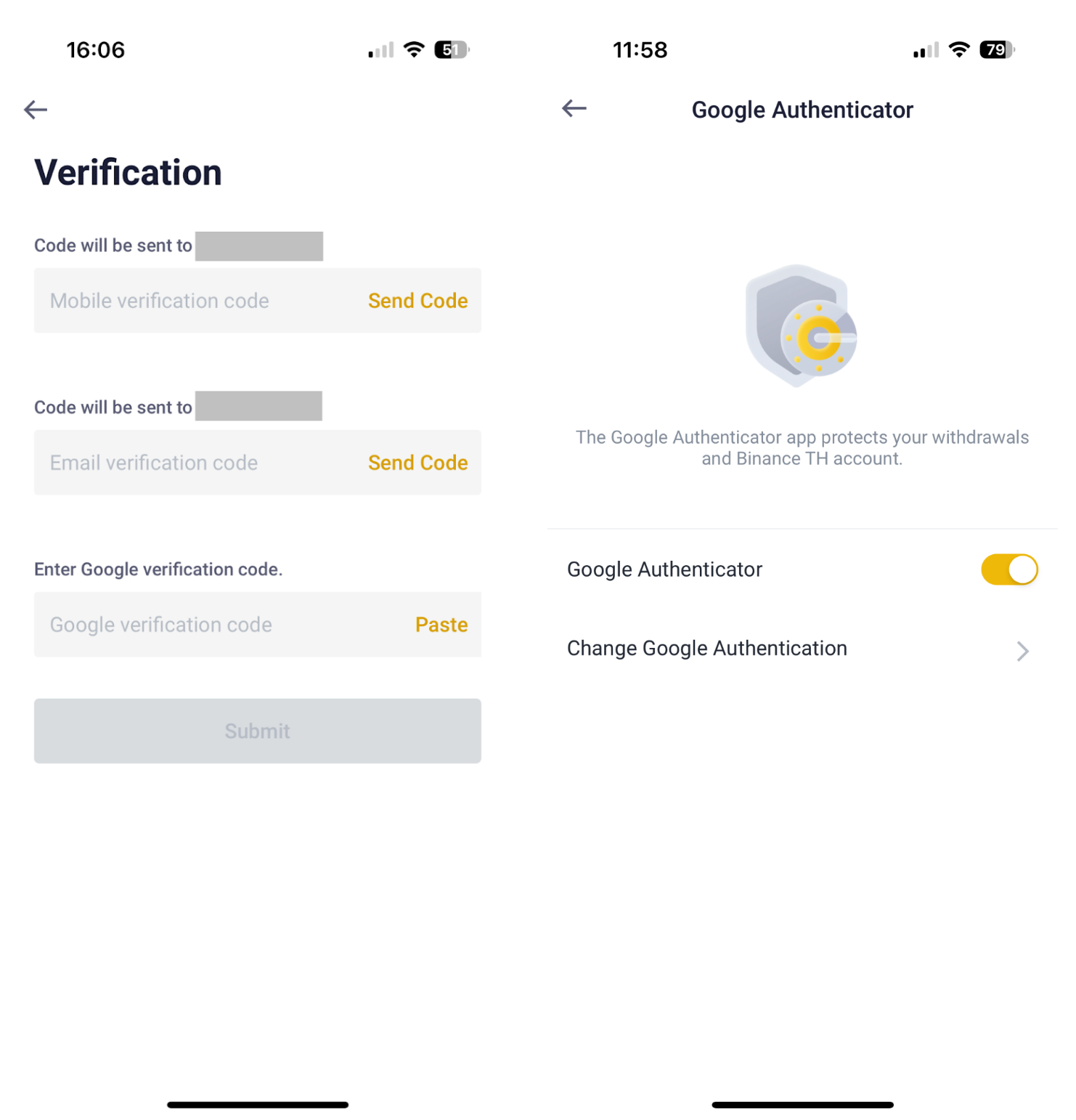
After enabling the Google Authenticator, you will need to enter the verification code when logging in to your account, withdrawing funds to verify your identity.
How to Transfer your Google Authenticator codes
When you sign in to your Google Account within Google Authenticator on a new device, your codes are automatically synced to this device.
If you continue to use Google Authenticator without a Google Account, you can still manually transfer your codes to another device.
To manually transfer Authenticator codes to a new device, you need:
1. Your old device with Google Authenticator codes
2. The latest version of the Google Authenticator app installed on your old device
3. Your new device
Steps to manually transfer Authenticator codes to a new device:
On your new device, install the Google Authenticator app.
In the Google Authenticator app, tap Get Started.
Sign in to your Google Account.
On your old device, create a QR code:
4.1 In the Authenticator app, tap Menu > Transfer accounts > Export accounts.
4.2 Select the accounts you want to transfer to your new device. And tap [Next]
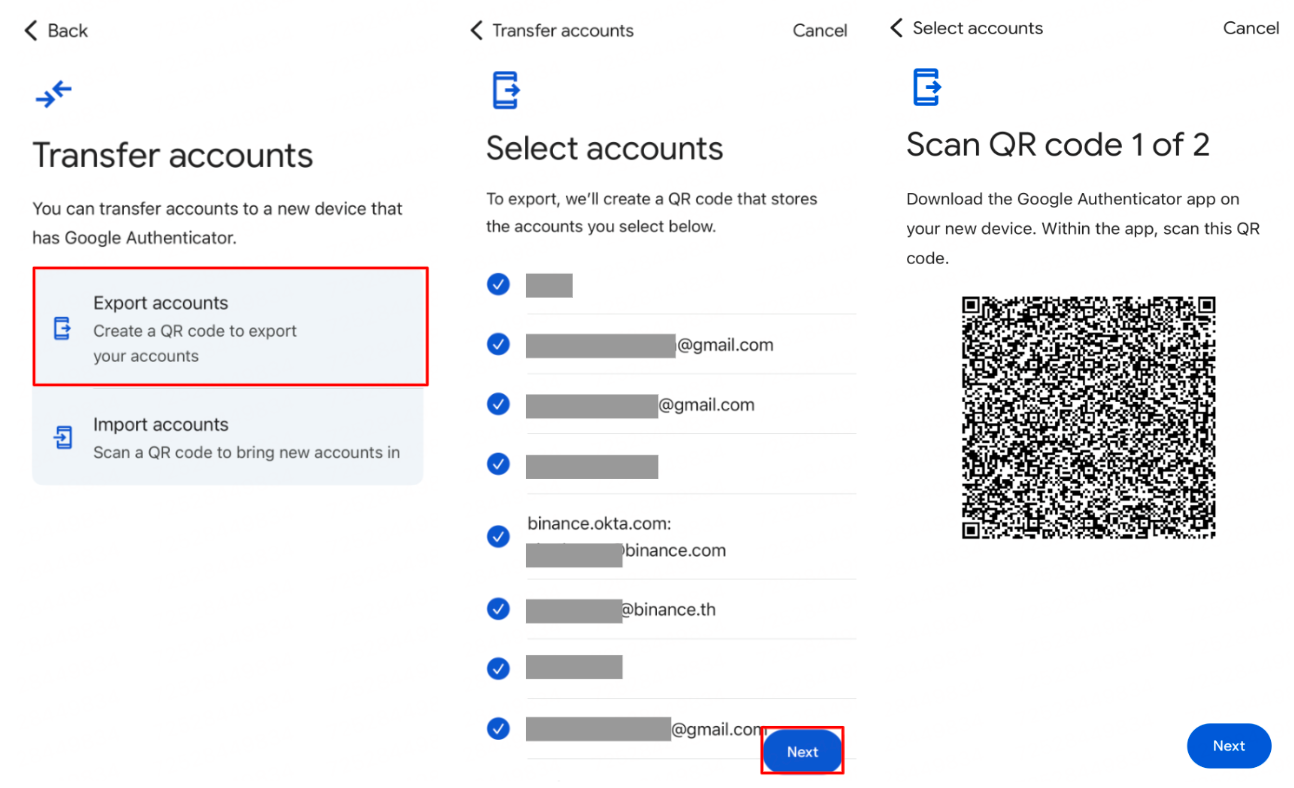
Note : If you transfer more than one account, your old device may create more than one QR code.
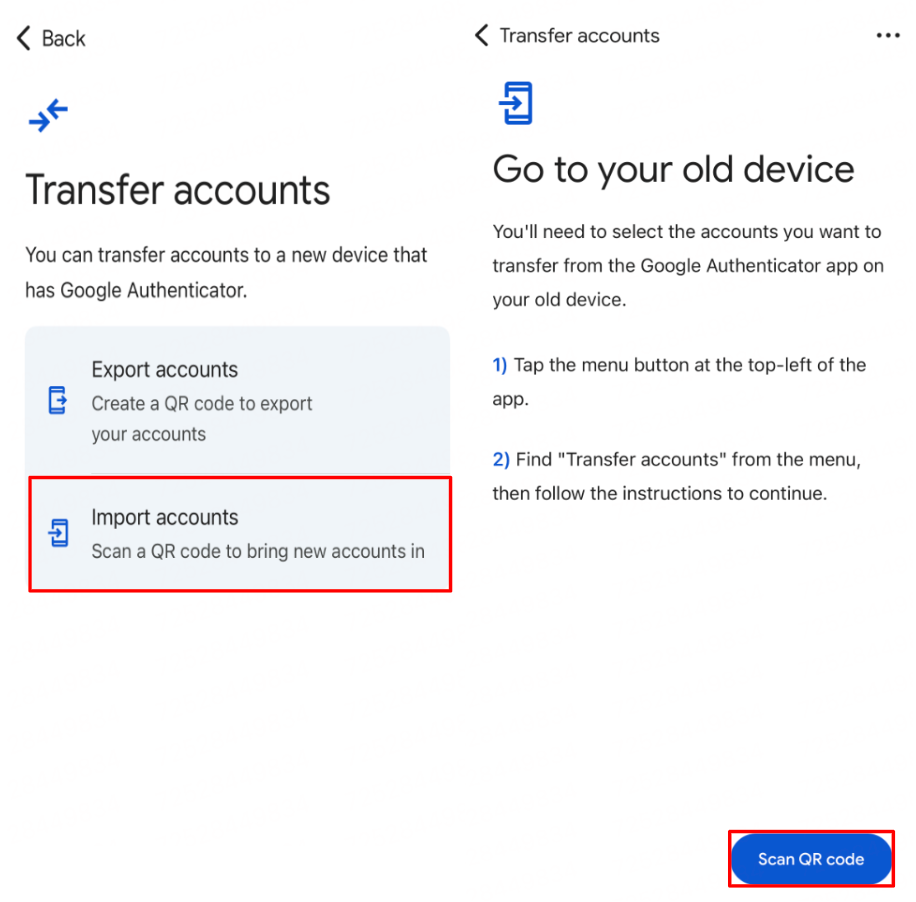
On your new device, tap Scan QR code.
5.1 In the Authenticator app, tap Menu > Transfer accounts > Import accounts.
5.2 Scan QR code created on the old device. After you scan your QR code, you’ll get confirmation that your Authenticator codes have been transferred.
If you want to disable Google Authenticator, please refer to How to Disable Google Authenticator on BINANCE TH App.